

Installing and Setting Up a Hikvision Wi-Fi Camera
Installing a Hikvision IP camera for Wi-Fi operation is quite simple and can be completed quickly. Using the appropriate software provided by Hikvision, the setup and configuration of the surveillance camera can be carried out in a few steps:
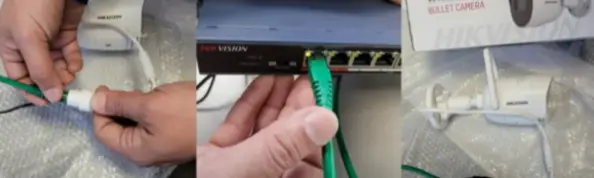
- Connect the camera to a PoE injector or to a switch. This supplies the camera with power and simultaneously establishes a data connection.
- Locate the camera in the SADP tool. The SADP (Search Active Devices Protocol) tool is provided by Hikvision and is used to manage the components of video surveillance systems. The tool can be downloaded from the Hikvision website.
- Activate the camera in SADP. Important: Remember the camera password. Otherwise, problems may arise later. If the password is forgotten, assistance from a certified Hikvision reseller may be necessary.
- Then have an IP address assigned via DHCP (Dynamic Host Configuration Protocol). This can also be done using the SADP tool.
- Enter the IP address into the address bar of your browser.
- The camera's login dialog opens. Please log in there using the camera's credentials.
- The camera is now ready for use, but for the time being only via cable.
To also use the camera via Wi-Fi, several additional settings must be configured:
- Assign a name to the camera.
- Select the appropriate time zone so that the camera can synchronize with the network.
- In the camera's Advanced Settings, access can be granted for Hik-Connect. Hik-Connect is an app that lets you control surveillance cameras and network video recorders (NVR) from Hikvision via smartphone app and tablet. In Hik-Connect, you can then add the camera. We have summarized how this works in detail in this article. Further software for managing Hikvision devices is available. See the section further below.
- In the camera's user interface, you can now make some further settings as needed, such as the desired resolution or the number of frames per second (fps). Which settings work best here depends on the quality of the available Wi-Fi network.
- To connect the camera to Wi-Fi, open the “Wi-Fi” tab in the camera's user interface and look for the appropriate network.
- Once the Wi-Fi connection is established, the power supply initially provided via switch or PoE can be replaced with a connection via power cable.
Depending on your requirements, various tools are available for controlling and managing Hikvision IP cameras.
Apps for Controlling Hikvision IP Cameras
Hikvision SADP
SADP stands for “Select Active Devices Protocol.” SADP enables the management of individual components in a Hikvision video surveillance system, such as surveillance cameras and network video recorders (NVRs).
The tool displays device information and also allows you to change the basic network settings of the devices. In addition, the devices can be enabled for use with other tools such as Hik-Connect.
Hik-Connect
Hik-Connect is an app with which surveillance cameras, network video recorders and other components of video surveillance systems can be controlled and managed. This makes it possible to easily and quickly set up remote monitoring.
iVMS-4200
iVMS-4200 is video surveillance software for Apple Mac computers. It allows you to remotely control various functions of Hikvision devices. For example, live images, playback of recordings, E-Map and the activation of alarm processing modules are possible. Video intercom systems, access control and other tasks that fall outside of CCTV systems are not supported.
Hikvision recommends iVMS-4200 for smaller projects.
iVMS-4500
iVMS-4500 is also a video surveillance software from Hikvision. It is available for smartphones and tablets running Android and iOS and offers a greater range of functions compared to iVMS-4200. These include, for example, real-time preview and the management of up to 256 device sets.
iVMS-5200 Professional
For professional use, Hikvision offers the iVMS-5200 package. The software is available as a server and client version in various Windows versions and can be tested free of charge for a limited period.
The tool is divided into various modules that can be combined as needed. Here are some examples:
- Video Wall Module: Here, various signals such as video, alarms, etc. are combined on a video wall.
- License Plate Recognition: Automatic recognition of license plates, colors and vehicle types, as well as control of outdoor chttps://www.germanprotect.com/ip-kameras/outdoor-kameras.htmlameras.
- Access Control: Access at various entrances can be managed centrally with this.
iVMS-5200 Mobile
The free version of iVMS-5200 Mobile can manage up to ten devices. Its functions include real-time monitoring, real-time localization, vehicle tracking and much more.
To manage additional devices, the license-based version of iVMS-5200 Mobile is available.
The software is available in a server and a client version for various Windows versions.


